Send invoices by sFTP
If you submit large quantities of invoices to Centrop, you can use our sFTP option. You then upload your UBL files to our secure FTP server. Here your invoices are processed immediately after upload.
Request sFTP account
Using the form below, you can request an sFTP account. You will receive an email from us with further information after approval. To use sFTP, you need to create a Public-Private key pair. Below are the instructions on how to do this.
After creating a key pair, paste the public key in the form below. Never send us your private key! Based on your public key, we create an account. You will receive an email when the account is active. You can then use your private key to access the sFTP location.
Create Key Pair
Attention!
Do not use PuttyGen. Our system doesn't accept the key generated by this application.
Key Pair Creation On Linux, Mac Or Windows (WSL)
Note for Windows:
If you install the Windows Subsystem for Linux on Windows, you can also run the commands below. WSL is available as of Windows 10. Click here to learn more about WSL.
To create a key pair, you need to use OpenSSL and the following command, in this example we are using ed25519.
1ssh-keygen -t ed25519
You will see approximately the following on your screen:
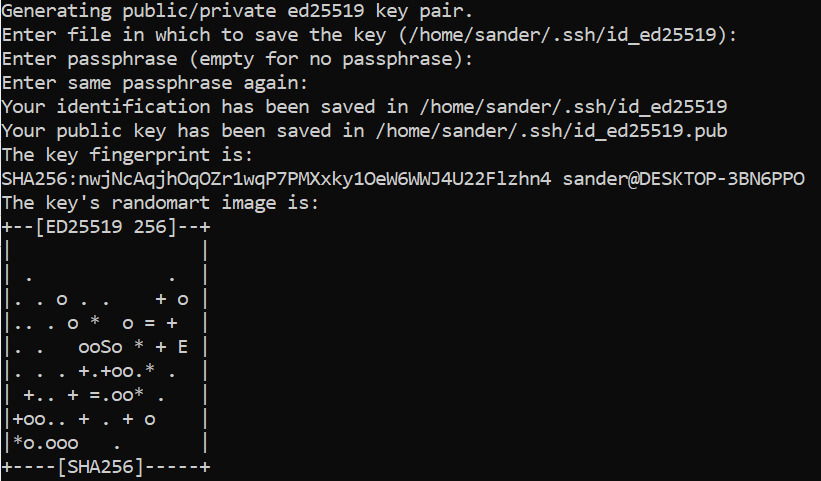
You can now open the public key file with the following command (or use any text editor of your choice, like Nano). Make sure you put .pub after the name. There is also a file without an extension. It contains your private key.
1vi .ssh/id_ed25519.pub
Copy everything from the beginning of the line (i.e., including ssh-ed25519) to the space (So you don’t include the space) and paste it into the form below to complete your application. To return to the command line after copying, type :q!
Accepted Formats
Our FTP server only accepts *.xml and *.ubl. For any other format you will receive an acces denied error.
Bonus
Bonuses do not need to be delivered via UBL. These are calculated in the Centrop system.
TAG Codes
TAG Codes don't need to be sent with the invoice/ubl. The tag code only needs to be added to the product list. With customization, however, it is possible to send the tag codes along. See UBL customization.
Centrop Member Number
To link the invoice to the correct member, you should also include the member number with each invoice. For this, we offer several options. If you add a reference to your invoice and we cannot read it, please ask the help desk of your administrative package where they put the information in the UBL.
-
Member Number In The Order Reference This order reference is added to the UBL so we can read the member number. See how to do this in the various explanations below.
-
Member Number In An Additional Invoice Line. A third option is to add an add an additional invoice line and put the member number in here. It is important that there is no other information in that line.
Setup sFTP
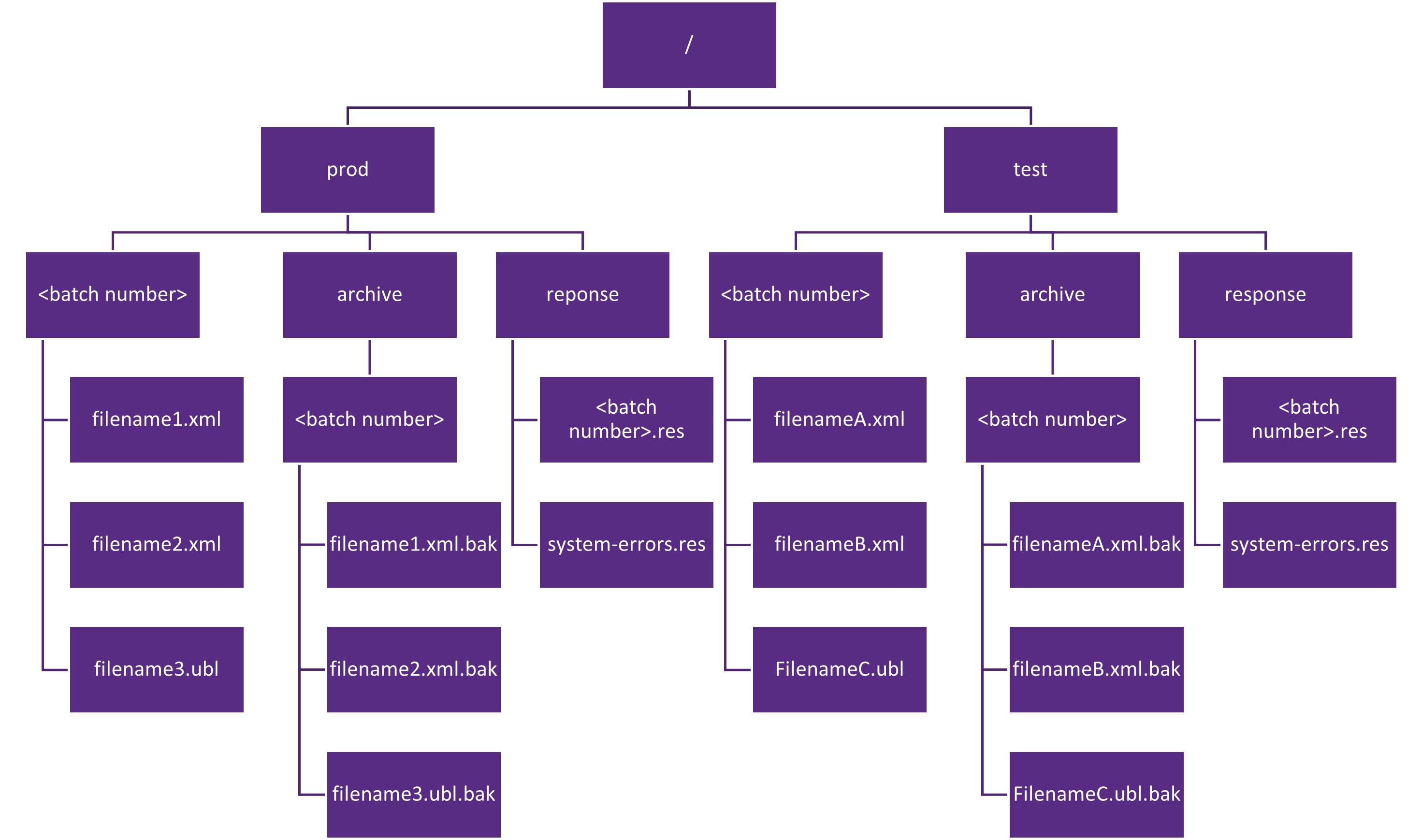
The first time you log in, your sFTP folder will be empty. You must create two folders here: prod and test. We will create the folder response after you upload your first file.
Within the test and prod folders, you must create folders with a batch number. In these folders, you place the invoices for that batch. A file is created in the response folder. The file name is your batch number. This file contains all messages about your files. See Response file chapter. Below is an overview of the sFTP folder structure:
Response File
We immediately create a separate response file for each batch number. This file will be located in the response folder.
Response files aren't sent by mail when using sFTP.
If you place documents in the wrong location, a system-errors.res file is also created in the Response folder or you will receive a Access denied ftp error. In it you will find more information about the errors. Error 500 is a common error. It occurs when you place a file in the wrong location within the sFTP structure.
The contents of the response file are as follows:
 1<?xml version="1.0" encoding="UTF-8" ?>
 2<root>
 3	<centrop-ubl-response>
 4		<version>1.1</version>
 5		<username>52124569</username>
 6		<batchnumber>1201</batchnumber>
 7		<invoices>
 8			<item>
 9				<datetime>20230225T09:38:00</datetime>
10				<filename>name59.xml</filename>
11				<number>234234</number>
12				<errors>
13					<item>
14						<error>
15							<code>10</code>
16							<description>UBL Error: specification of error in ubl</description>
17						</error>
18					</item>
19					<item>
20						<error>
21							<code>20</code>
22							<description>Supplier Invoice already present</description>
23						</error>
24					</item>
25				</errors>
26				<warnings>
27					<item>
28						<warning>
29							<code>310</code>
30							<description>You cannot overwrite an existing value with a new value in a product. Invoice: 10EX Product_code: CC4080SBROR3ABCD2 InvoiceLine: 1 Property: TagCode Old_value: 1130 New_value: 9999 </description>
31						</warning>
32					</item>
33					<item>
34						<warning>
35							<code>310</code>
36							<description>You cannot overwrite an existing value with a new value in a product. Invoice: 10EX Product_code: CC4080SBROR3ABCD2 InvoiceLine: 1 Property: TagCode Old_value: 1130 New_value: 9999 </description>
37						</warning>
38					</item>
39				</warnings>
40				<status>NOT OK</status>
41			</item>
42			<item>
43				<datetime>20230221T09:38:10</datetime>
44				<filename>name60.xml</filename>
45				<number>234234</number>
46				<status>OK</status>
47			</item>
48			<item>
49				<datetime>20230221T13:38:00</datetime>
50				<filename>name65.ubl</filename>
51				<number>234234</number>
52				<status>OK</status>
53			</item>
54		</invoices>
55	</centrop-ubl-response>
56</root>
The response file xsd can be found here
sFTP Server Time
The time used in all response files and on the server is UTC.
PDF Version of the Invoice
If you cannot process the PDF in the UBL, it is possible to upload the PDF afterward. You can place a batch of PDF files in the upload folder where you also place the UBL files. It is important that the name of the PDF is either the invoice number or has the same name as the original UBL. You can simultaneously place UBL and PDF files in the upload folder. The UBL will always be processed first. If it is successfully processed, the PDF will be processed afterward.
UBL Testing
You can use the link below to check if your UBL meets the specifications.
Warnings aren't rejected, but unwanted. Error messages must be resolved.
https://test.peppolautoriteit.nl/validate